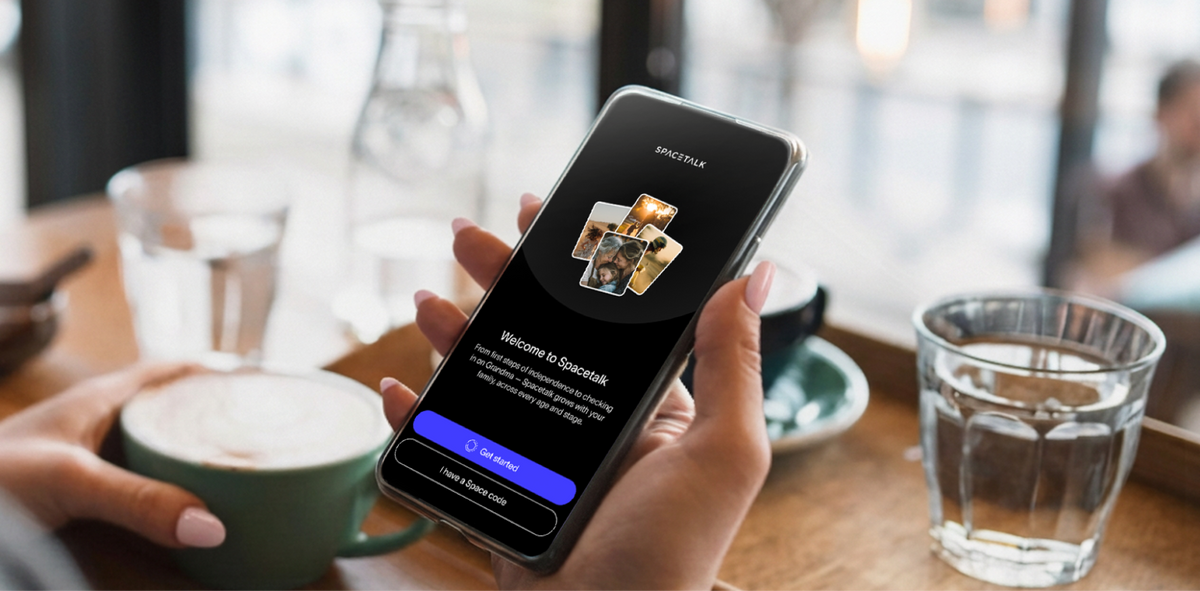
Key Takeaways

  • Download the app, create your first Space, switch on Places and Routes, then invite your people.
  • Choose Always for location access on iOS so your Places alerts line up with the right spot on the map.
  • Places alert you when someone arrives or leaves, and Routes flag it when a regular journey drifts off the path.
  • Adults join a Space with an invite code, while kids and dependents get an SMS invite or a paired watch.
  • Only you add or remove Trusted Contacts, so your kid can't join a new Space from their watch.

Download the Spacetalk App from the App Store, create your first Space, switch on Places and Routes, then invite your people.

Do those four things in one sitting and your iPhone becomes home base for the whole family's peace of mind.

Let’s walk you through each step on iOS, using the exact menus you'll see in the app.

Before you start, have these ready:

  • The Spacetalk App: Search "Spacetalk" in the Apple App Store and download it.
  • Your email address and mobile number: The app sends a one-time code to confirm your account, then asks for your second detail to keep your account secure.
  • An active watch plan: If you’ve purchased a watch plan from our Spacetalk online store, you can activate your plan in the Spacetalk App. But if you haven’t purchased a watch plan yet, you can now do so in your app.
  • Your kid's Spacetalk Watch: Charge it and keep it nearby if you plan to pair it during setup.

Creating Your First Space on iOS

Your app already starts you off with a Space called Family, so you can use that one straight away or tap the blue + button to create a new one. Each Space has its own members and its own sharing settings, so you decide exactly what each group sees.


Follow these steps on your iPhone:

  • From the Spaces screen, tap the blue + button in the bottom-right corner, then tap Create new Space.
  • Enter a name for your Space and tap Continue.
Naming a new Space in the Spacetalk App before tapping Continue
  • Tap Add Member now, or skip and add people later.
Add Member prompt shown after creating a new Space on iPhone

After you tap Add Member, choose from four options:

  • Invite Adults: Bring in a partner, co-parent, carer or anyone else who uses the Spacetalk App. They join your Space with an invite code you share.
  • Add a Kid: Enter your kid's details and their device. The Add a Kid to your Family guide walks you through each screen.
  • Add a Senior or Dependent: Set up an ageing parent or someone you care for, using the same steps as adding a kid. See Add a Senior or Dependent for details.
  • Pair a Watch: Connect a Spacetalk Watch to someone you look after. Follow Pair your Spacetalk Watch to get it linked.

Quick iOS check: if you tapped "While Using" by mistake, open your iPhone Settings, scroll to Spacetalk and tap Location. Select Always and leave Precise Location switched on, so your Places alerts line up with the right spot on the map.

Think about who belongs in each Space before you invite anyone. Many families end up with a "Home Crew", "School Run", "Weekend Sport" and "Nan & Pop" Space, each sharing only what that group needs.

When you add a kid, you manage what they share in that Space on their behalf, and you can change it any time. Their Spacetalk Watch runs on its own real-time 4G connection, so their location keeps updating without them carrying a phone.

Turning On Places, Routes and Check-Ins

Set up Places first for the spots your crew visits every week, then add Routes for their regular journeys.

Check-ins sit on top of both and give everyone a quick way to share how they're going.

1. Setting up Places

Places send you a gentle alert when someone arrives at or leaves a location you choose. They do most of the heavy lifting in any family safety app in iPhone, because they cover the school-day moments you care about most.

  • Tap the + button and select Add Place.
Add Place option under the plus button in the Spacetalk App Places menu open in the Spacetalk App ready to add a new spot
  • Pick a suggested place, or tap Add a Place to create your own.
Suggested places list with the option to add a place of your own
  • Drag the map to drop your pin, or type the address under Place address.
  • Adjust the radius. For a school, stretch it to cover the whole campus.
Dropping a pin and adjusting the radius for a Place on the map
  • Add a name and an icon. Emojis work too.
Naming a Place and choosing an icon or emoji for it
  • Choose who you get arrive and leave alerts for. Flick the top switch for everyone, or set each member separately.
Choosing which members get arrive and leave alerts for a Place Arrive and leave alert switches set separately for each member of a Space
  • Tap Add notification for a time-based alert. Pick a time and the days of the week, then give it a custom title.
  • Tap Save Place.
Setting a time-based notification before saving a Place on iPhone

The time-based alert makes a big difference for kids who walk to school. Set it for weekdays at 8.45am and you'll know they've arrived before the bell, without sending a single text.

2. Setting up Routes

Routes let you know when a member of your Space starts a regular journey and show their location in real time along the way. If they drift off the path, you get a gentle reminder in the app.

  • From your Space, tap + and select Add Route.
Add Route option under the plus button in a Space Route setup opening in the Spacetalk App on iPhone
  • Search and select the start address, then the end address.
Searching the start and end address for a new Route
  • Tap the icon for their usual way of getting there, then tap Setup Route.
Choosing how your kid usually travels before setting up the Route
  • Move the Deviation Allowance slider. Keep it tight for a short walk and wider for a bus route with detours. The map shows the allowance visually.
Deviation Allowance slider showing the approved path on the map
  • Give the Route a name under Route Name.
Giving a Route a name in the Spacetalk App
  • Toggle Notify about all Members, or switch on alerts only for specific people. Green means you'll receive them.
Route alerts switched on for specific members of a Space Notify about all Members switch showing green for a saved Route
  • Tap Save Route.

Good first Routes include the walk to school and the bus home. You can edit any Route from the app whenever plans change.

Saved Route for the walk to school shown in the Spacetalk App

3. Using feelings check-ins

Check-ins give your people an instant way to share an update on how they’re feeling inside a Space. Kids on a Spacetalk Adventurer 2 can also send a feelings check-in, a simple emoji, straight from their watch, so you get a sense of their day alongside their location.

Inviting the Rest of the Family to Join

Tap + and select Add Member. Then choose who you're adding. Adults join with an invite code, while kids and dependents receive an SMS invite to their mobile number.

Add Member options for inviting adults, kids and dependents Choosing who to add to a Space on iPhone

Pick the option that fits each person:

  • Invite Adults: for a partner, co-parent, carer or grandparent who uses the Spacetalk App. Read the invite code out loud or tap Share Code to send it through your iPhone's share options.
Invite code ready to share with a partner, carer or grandparent
  • Invite from your contacts: tap this and allow access to your contacts. Then tap the + beside each person, and it turns into a tick once the invite is on its way.
  • Add a Kid: opens the family drawer, where you enter their details and their device.
  • Add a Senior or Dependent: works the same way as adding a kid.
  • Pair a Watch: pairs a Spacetalk Watch to someone you look after.

Adults who receive a code download the app, tap the blue + button, select Join a Space and enter the code. If a kid hasn't accepted their invite yet, tap Resend Invite on their profile card.

Joining a Space with an invite code in the Spacetalk App

Once everyone's in, you stay in charge. Only you add or remove Trusted Contacts from the Spacetalk App, and your kid can't add a contact or join a new Space from their watch.

Chat works the same way. When your kid sends a message from their watch, it lands in the app inside the Space you've set up, and you reply from your iPhone.

Watch-to-watch chat with friends runs through a separate feature called Buddies, which you approve before it goes live.

Completing Your Family Safety Setup on iPhone

You're done once every member shows up in your Space and your key Places and Routes have alerts switched on. From there, the app works quietly in the background and only speaks up when something matters.

The best family safety app iPhone families can choose is the one they'll actually use every day. Spacetalk keeps it simple, with one app for your iPhone that grows with your kids from their first watch to their first phone.

Ready for the next step?

  • Got a kid without a phone? The Spacetalk Adventurer 2 is Australia's #1 kids smartwatch, with SOS, School Mode, a 5MP camera and two-minute video calls with members of their Space. The watch skips social media and open internet browsing entirely, with no app store to download from. Bundles are currently on sale.
  • Starting with a younger kid? The Spacetalk Loop covers first freedoms with a simpler feature set.
  • Need a plan for the watch? Compare the Spacetalk Watch Plans to find the plan length that suits your family.
  • Moving a teen onto a phone? The Spacetalk Mobile Plans run on one of Australia's biggest networks, with no lock-in contracts.
Family members, Places and Routes all set up in one Space on iPhone

Peace of mind for you starts with a few taps on your iPhone.

Explore Spacetalk

Built for exactly this

Smartwatch · Kids

Spacetalk Adventurer 2

Australia's #1 kids smartwatch, with SOS, School Mode, a 5MP camera and two-minute video calls with members of their Space.

Shop now

Smartwatch · Kids

Spacetalk Loop

Covers first freedoms with a simpler feature set for a younger kid.

Shop now

Plans · Family

Spacetalk Watch Plans

Compare the Spacetalk Watch Plans to find the plan length that suits your family.

Shop now

Frequently Asked Questions

How do I set up family safety features on iPhone?

Download the Spacetalk App from the App Store and create your account, choosing "Always" when iOS asks for location access. Then create a Space and add Places for your regular spots. Routes come next for regular journeys like the walk to school.

What's the quickest way to get the whole family connected?

Tap +, then Add Member, then Invite Adults, and drop the invite code into your family group chat with Share Code. Add your kids in the same session with an SMS invite or by pairing their watch.

What should I check after everyone has joined?

Open your Space and confirm every member appears on the map. Then open each Place and Route to make sure the right people receive arrival and off-route alerts, which is the easiest way to get the most from your family safety app iPhone setup.


Love keeping up with Spacetalk?

Add us as your preferred source on Google and never miss a new post, product update or parenting tip.