

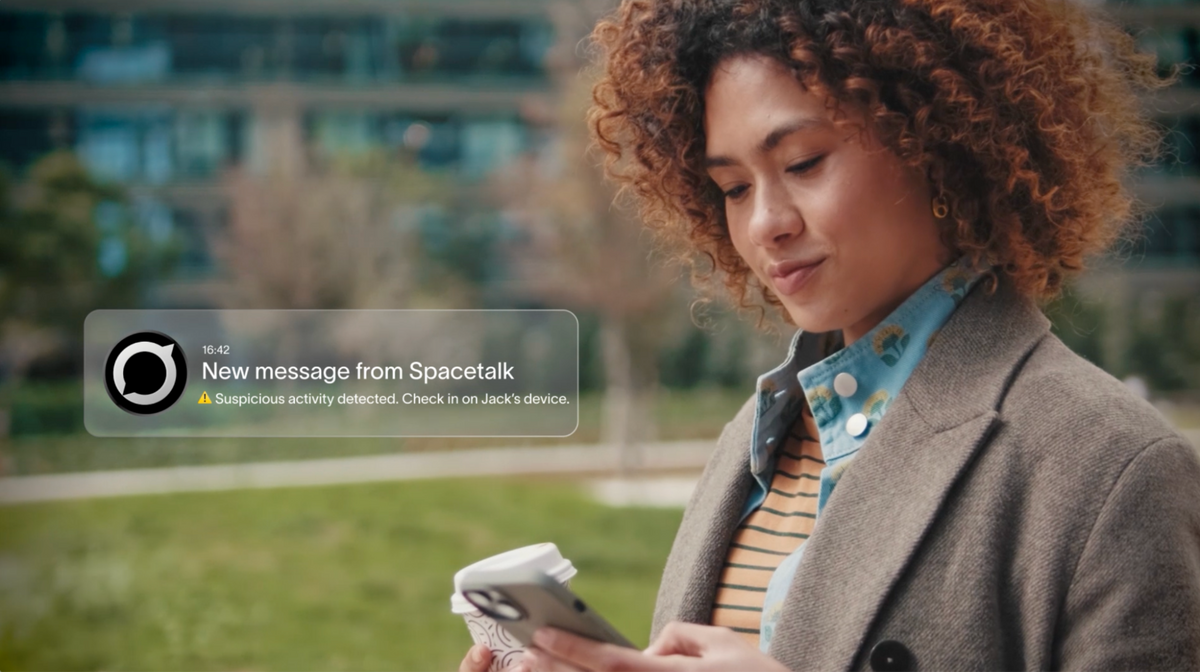
The Spacetalk App gives you real-time visibility into your kid's location, mood and daily wellbeing, all from a free download on the App Store. It pairs with the Spacetalk Adventurer 2 or Spacetalk Loop watch, so your kid gets a safe device on their wrist while you get the full picture in your pocket.
Unlike generic tracking tools, Spacetalk was built specifically for families. Your kid can't be reached by anyone outside the Trusted Contacts you approve. The app is where all of that safety comes together, and it works just as smoothly on iOS as it does on Android.
Here's how to actually monitor your kid's safety through the Spacetalk App on your iPhone.
Open the app, and you'll land straight on your Space, showing exactly where your kid is right now. Spacetalk is a genuine parental monitoring app for iPhone users that provides location awareness that updates automatically, without you needing to ask.

By default, your kid's watch sends a location update every 15 minutes. You can adjust this in the app, though more frequent updates will use more of the watch's battery. If you need an update right this second, your kid can tap the Location icon on their watch to send one straight to your phone.
The real value comes from Places. Set up safe zones like home, school or grandma's house, and you'll get an alert the moment your kid arrives or leaves.
On iPhone, these come through as standard push notifications, so you don't need to keep the app open in the background. To set up a Place on your iPhone:
Feelings check-ins tell you how they're doing while they're there, and this is where Spacetalk goes further than most tracking apps on the market.
The Feelings feature lets your kid tap an emoji on their watch to send you a quick update on their mood. That check-in lands in your Spacetalk App on iPhone within seconds, you can view the full history of feelings sent over time, which can be a useful way to notice patterns, like consistently tough Monday mornings or a tricky patch with a friend.
This is a small, low-pressure way for your kid to tell you something without needing to pick up the phone and call. For a lot of families, these little check-ins open up conversations that might not have happened otherwise. Other data you can see through the app on iOS includes:

You'll get a push notification for Place arrivals and departures, SOS activations, low battery warnings, incoming messages and chat, and feelings updates.
Each one is labelled so you know at a glance what's happened, without needing to open the app every time. Make sure notifications are switched on properly so nothing slips through:
SOS notifications deserve special mention here. If your kid ever finds themselves in an emergency, they swipe up on the watch and slide the SOS icon to activate it.
The moment that happens, an alarm goes off in the app, and the watch begins calling and messaging your emergency contacts automatically. As the account holder, you'll be alerted straight away on your iPhone, with the exact location included.

Battery reminders are also worth setting up properly. Spacetalk's battery life depends on how the watch is used, including calls made and messages sent, so a reminder notification means you're never caught out with a flat watch at pickup time.
School Mode notifications work a little differently. When School Mode is active, the watch goes silent for the hours you set, so your kid isn't buzzed by calculator games or funny sounds during class.
Location and SOS stay live the whole time, and you can still receive updates on your iPhone even while their watch stays quiet.
The Spacetalk App works best when you set it up properly from day one. Add your Trusted Contacts, configure your Places, turn on notifications and have a chat with your kid about what SOS is for. Once that's done, monitoring becomes something that runs quietly in the background of your day, not another thing you have to actively manage.
For parents comparing options, it's worth remembering that Spacetalk is a closed, family-first platform where your kid can only be contacted by people you've approved.
That combination of visibility for you and genuine safety for them is what the whole ecosystem is built around.
If you're ready to see it in action, head to the Spacetalk website to check out the Adventurer 2 bundle and get your family set up on the app today.
Explore Spacetalk
App · Family
Spacetalk App
Live location, Places, Feelings, SOS and School Mode — free on the App Store.
Learn moreBundle · Value
Adventurer 2 Smart Bundle
Watch, SIM, charging cradle and screen protector — everything to get started.
Shop nowSmartwatch · Kids
Spacetalk Loop
GPS, SOS, Places and calling — a simpler first watch for younger kids.
Shop nowThe app pairs with your kid's Spacetalk Watch over their own SIM connection, sending location updates, SOS alerts, feelings check-ins and messages straight to your iPhone. You manage everything, including Trusted Contacts, Places, Routes and School Mode, directly from the app, and updates arrive as push notifications so you don't need to keep checking manually.
Yes. The Spacetalk App is built for both iOS and Android, and the full feature set, including Spaces, Places, Routes, SOS, Chat and Feelings, works identically across both. There's no reduced version for iPhone users, so you're getting the complete parental monitoring app experience for iPhone.
Yes, you can adjust location update frequency in the app settings, and you can turn individual notification types on or off from your iPhone's Settings menu. Just keep in mind that more frequent location updates will use more of the watch's battery, so it's worth finding a balance that suits your family.
Love keeping up with Spacetalk?
Add us as your preferred source on Google and never miss a new post, product update or parenting tip.
Share:
How to Choose the Right Spacetalk Watch for Your Kid?
What the Spacetalk App Shows You About Your Child's Day