

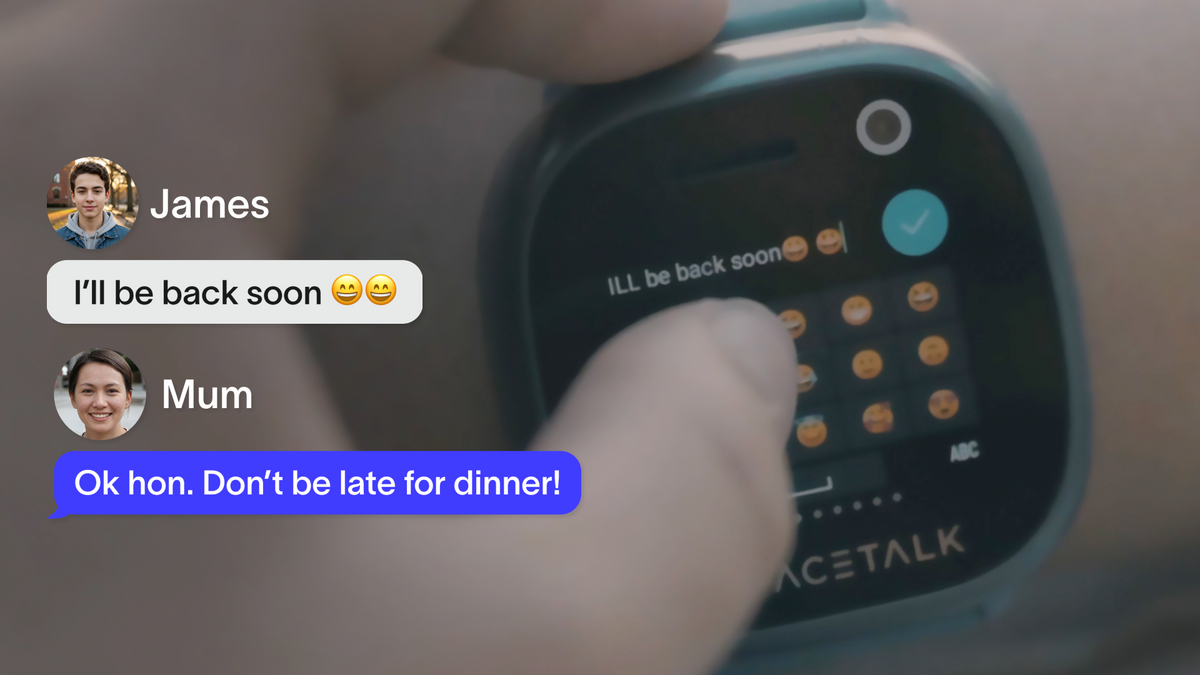
Somewhere along the way, the group chats enter your kid’s life. The friends are all messaging each other after school and planning weekends together. Your kid is stuck watching from the sidelines because you're not ready to hand them an open messaging app with strangers, pop-up ads, autoplay video, and whatever else lives inside it.
You don't want to say no to connection altogether. You just want it to happen somewhere closed you can actually see, without turning into the parent glued to their phone checking every message.
This is exactly the gap a proper family chat app closes, and it's worth understanding how Spacetalk actually handles it before you assume it works like every other messaging app your kid's friends are using.
Spacetalk's chat runs entirely inside Spaces that you set up yourself, not inside an open network where your kid can be added to a group by someone else's older sibling or a friend of a friend.
A Space is a small, closed group of Trusted Contacts you choose, and nothing outside it exists on your kid's watch.
The difference from a typical open messaging app or a family chat app that runs on a shared family phone shows up in a few concrete ways:
This closed structure is the whole point. It should feel like an extension of the household, not a doorway to everyone your kid has ever met online, and that boundary never blurs.

A Space can hold just one trusted adult or several, so the same chat setup works as a private line to one parent or a small family group, depending entirely on how many people you've added.
There's no separate feature to switch on for group messaging. It comes down to who you've put inside the Space in the first place. A few ways families typically set this up:
Every message your kid sends from the watch lands inside that Space in the Spacetalk App, visible to whoever you've added there. Based on how you’ve set sharing permissions within each Space, members can reply straight back to the watch, so the conversation never has to wait on one specific person being free.
Only Trusted Contacts you've personally added through the Spacetalk App will ever show up inside your kid's chat.
Your kid can't add a new contact, approve one, edit the list, or remove someone from it, no matter how many settings they tap through. Here's how that control actually sits between the two devices:
This is deliberate. A family chat app only works as a safety feature if the list of who can reach your kid stays entirely in your hands, and Spacetalk keeps that control on the App side, permanently, rather than leaving any of it open to whoever your kid happens to be talking to that week.

Setting up your first Space takes a few minutes inside the Spacetalk App, and your kid doesn't need to do anything on their end at all. Once it's built, Chat switches on automatically and is ready for them to use from the watch.
From there, the whole thing runs itself. Your kid gets a simple way to reach the people who matter most, and you get a family chat app that never grows beyond the contacts you've chosen for it.
If you're setting up your kid's watch for the first time, the Spacetalk App page walks through the rest of what's included, from Places to School Mode, so Chat is just one part of a much bigger picture.
Explore Spacetalk
App · Family
Spacetalk App
Where you build every Space, add Trusted Contacts, choose who can reply, and manage every permission for it.
Shop nowSmartwatch · Kids
Spacetalk Watch
Only shows your kid the contacts and Spaces you've already switched on, nothing more.
Shop nowSafety · Family
Family Safety
A small, closed group of Trusted Contacts you choose, and nothing outside it exists on your kid's watch.
Shop nowFamily chat runs through Spaces, a group of Trusted Contacts you set up yourself in the Spacetalk App. Your kid sends messages from the watch to that Space, and you or another trusted adult in the Space replies from there. This is separate from Buddies, the feature that lets two kids message each other watch-to-watch once a parent has approved the connection.
No. Chat only ever includes the Trusted Contacts you've added to a Space through the Spacetalk App, and there's no invite link, search function, shareable code, or open group your kid could stumble into. If someone isn't already a Trusted Contact you've set up, they simply don't exist inside your kid's chat.
No, not from the watch. Adding anyone new, whether that's another Trusted Contact or a Buddy for kid-to-kid chat, always goes through you in the Spacetalk App first, and nothing goes live until you've approved it. Your kid can use whichever contacts and Spaces you've already switched on, but they can't expand that list themselves.
Love keeping up with Spacetalk?
Add us as your preferred source on Google and never miss a new post, product update or parenting tip.
Share:
How To Manage Screen Time Without Handing Over a Smartphone
How the Spacetalk App Gives Parents an At-a-Glance View of Their Family