

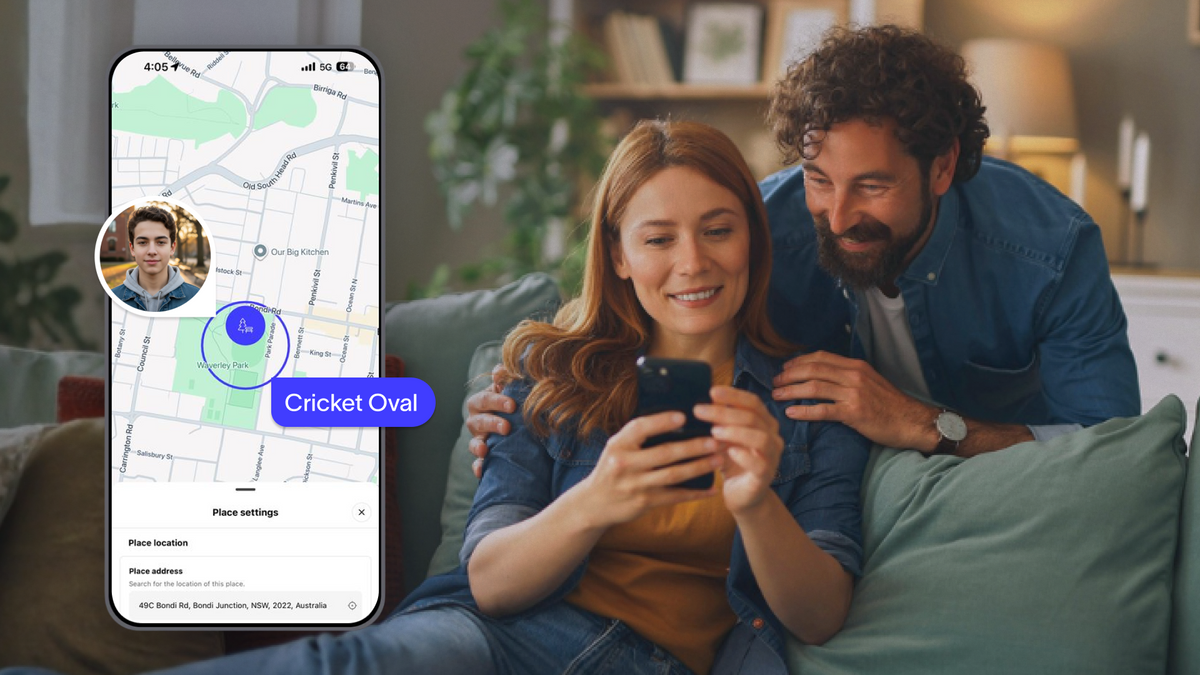
The right way to set up location sharing comes down to three decisions.
Get those right, and kids' location sharing feels like a safety net instead of a leash. Get them wrong, and your kid feels checked on, while you spend the afternoon refreshing a map.
Let's cover the choices to make first and the exact settings in the Spacetalk App that keep updates flowing. It also covers the conversation to have before anything switches on.
Share location only with adults you trust, and only through a Space you control. Everything else follows from that.
In the Spacetalk App, only the Space members you invite can see a location. Nobody joins by accident, and nothing is ever public. Your kid's Spacetalk Watch is a gated device too.
Your kid can't add a contact or join a new Space from the watch, because you control both from the App. Before you invite anyone, settle these four questions:
Here's the detail most parents miss. Kids' location sharing works differently on the watch and on a phone.
The watch shares its own location over its own 4G connection, so your kid doesn't need to carry a phone for you to see where they are.
Adults in the Space share location from their own phones, which is why the phone settings in the next section matter.
Build your Space first, add Places second, then fix your phone permissions. That order stops most "why isn't it updating?" moments before they start.
The Spacetalk App creates your first Space automatically when you sign up. Invite your people from there. Then add Places so the App can tell you when your kid arrives or leaves somewhere familiar:
If your kid walks or rides the same way every day, add a Route too. The App sends you a nudge when they stray off track.

Next, check the permissions on your own phone. If you share location from your phone, these settings decide how often it updates:
Once it's running, the map shows a Place name when your kid is at one of your Places. It shows a suburb when they're somewhere else.
It shows a Route name when they're on a saved Route. Each entry carries an "updated" time, such as "updated 2 mins ago".
The App shows the latest confirmed location, not a live stream, so read the timestamp before you worry. Three things on the map are worth knowing:
Need to look back?
Open the member's profile, swipe up on the card, tap Watch Settings, then Location History. You can pick any day in the past 30 days and see every location update recorded that day.
Tell your kid before you switch it on, and frame it as the thing that earns them more freedom. Kids' location sharing works best as a deal you make together. A kid who finds out later treats it as a secret.
Think about the first solo walk to school. Your kid wants to go alone. You want to know they got there. Location sharing lets both of those things be true, and you can say exactly that in plain words. Make the conversation specific:

Your first Space already exists the moment you create your account, so you only need to fill it out. Here's the full run-through:
That's the whole setup. If you're still choosing a watch, the Spacetalk Adventurer 2 suits tweens aged roughly 8 to 14. It connects over its own 4G, so location sharing works without a paired phone. Check the product page for the current smartwatch bundle offers, and see the Watch Plans page for the SIM plan that runs it.
Done well, kids' location sharing is quiet. Your kid gets the walk to school, the bike ride, the sleepover and the trip to the oval. You get the alert that says "arrived" without having to ask.

Explore Spacetalk
Download the Spacetalk App and create your account, then pair your Spacetalk Watch once it has an active SIM. Next, invite your people into your Space and add Places for home and school. Set your own phone's location permission to Always, then tap Refresh Location on your kid's profile to confirm it works.
Only the Space members you invite can see it, and you control who has access. Location is never public, and your kid can't add anyone from the watch because you manage Spaces and contacts in the App.
Tell them it's how you get to say yes to more independence, not a way to check up on them. Show them who can see their location and agree on when you'll look. Let them tap the Location icon on their watch so they can send an update themselves.
Love keeping up with Spacetalk?
Add us as your preferred source on Google and never miss a new post, product update or parenting tip.
Teilen:
How a Spacetalk Watch Helps Without Giving Your Kid a Phone
How Spacetalk Keeps Your Watch Connected When It Matters