

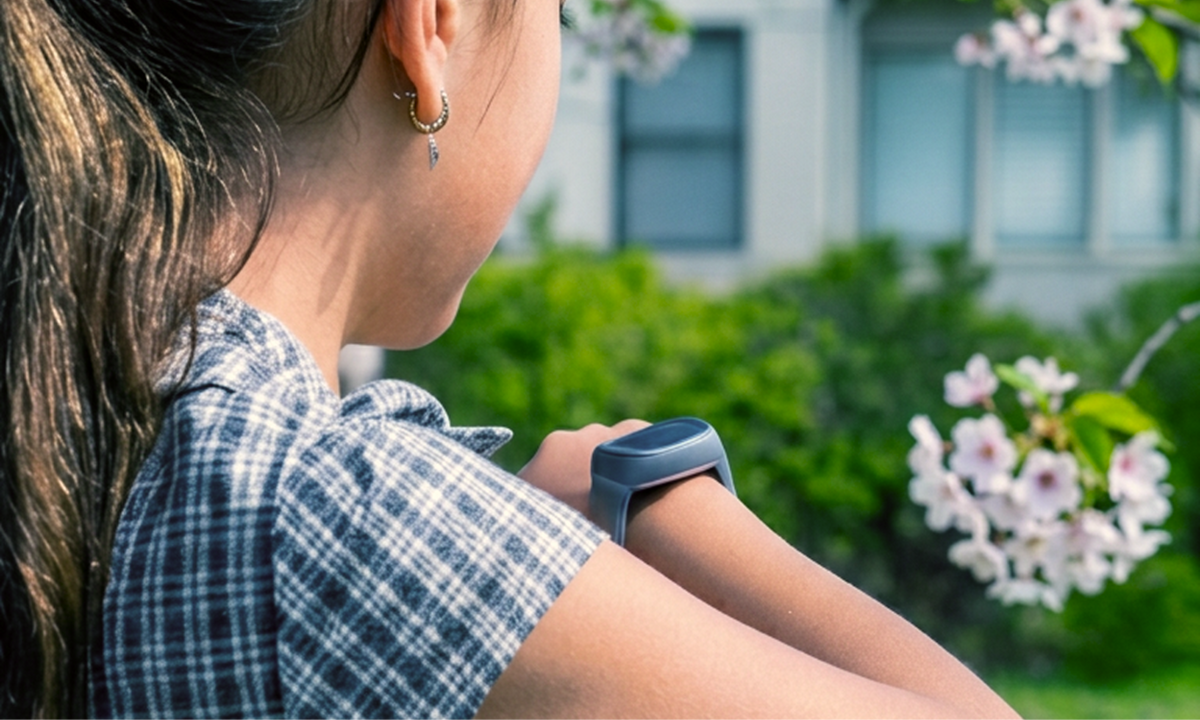
Your kid heads off to footy training, and you're left checking your phone, wondering if they made it there okay. It's exactly why so many parents search for apps for kids to call parents before they buy a kids' smartwatch.
The Spacetalk App and the Spacetalk Adventurer 2 work together to give your kid a direct way to reach you. The watch carries the calling function. The app is where you decide exactly who they can call.
Let's walk through how calling actually works, from setting up approved contacts to what happens when a call goes unanswered, so you know exactly how your kid stays in touch.
Calling on the Spacetalk Watch starts in the Spacetalk App, not on the watch itself. Your kid can't add or remove anyone from their own contact list. That control sits with you, every time.
When you set up your account, your first Space is created automatically. Add the people you want your kid to call or message into that Space, and they show up on the watch as a contact your kid can tap.
Want someone to call or text the watch without joining a Space or downloading the app? Grandparents are the classic example here. You can add them directly as a Watch Contact instead:


This option needs Spacetalk App version 10.15.0 or later, so update the app first if you don't see it.
Among apps for kids to call parents, this closed-list setup is what sets Spacetalk apart. There's no open contact list. No friend requests. No public profile. No way for your kid to add a stranger from the watch. Every name that shows up when they tap Call is one you put there yourself.
Your kid can start a call from their watch, and you can start one from your phone. Both routes work, so you're never stuck waiting for them to reach out first. Here's how it looks from the watch side:
Video calling is exclusive to the Adventurer 2, and it only works between members of the same Space. Every video call is capped at two minutes for safety, and it ends automatically once that limit is reached.
The call always runs over the watch's own 4G connection rather than through a parent's phone, so your kid stays reachable even if their mobile is sitting in a school locker.
You can also call from your side, straight from the Spacetalk App:
This two-way setup is one of the reasons Spacetalk comes up often in searches for apps for kids to call parents. The watch is built for a kid to use on their own. The app gives you the exact same reach from wherever you happen to be.

If your kid doesn't pick up, the call rings out and ends, the same as any mobile call. There's no voicemail inbox to check, so a missed call shows up in the call log on the watch rather than leaving you guessing whether it connected. A few things help when a call doesn't get through:
None of this leaves you without options. You can try calling again or send a Chat message, and if you want more context, check their last location on the map in the meantime.

You're added as an approved contact the moment you set up the Spacetalk App for your kid's watch.
Your first Space is created under your profile automatically, and you're in it from the start. It's still worth double-checking that your details are current, especially after changing your number:
Keeping this list current matters more than it sounds. If your number changes and the watch still has the old one, your kid taps your name, and nothing happens on your end. A two-minute check in the app avoids that entirely.
This is really the whole point of apps for kids to call parents - a direct line that works because you built it, not because you're hoping a stranger's app got it right. Once your details are set up properly, your kid has a reliable, one-tap way to reach you, wherever a Spacetalk Watch can find 4G.
Explore Spacetalk
Your kid taps the Call icon on their Spacetalk Watch and picks your name from their approved contacts. The call connects over the watch's own 4G connection and comes through on your phone like a normal call. If you're already set up as part of their Space, you're on that list without doing anything extra.
Only approved contacts. Your kid can't look up or dial a number you haven't already added, so a stranger's call can never get through to the watch. Every contact on the list, whether added through a Space or as a direct watch contact, was put there by you.
It rings through to your phone like any other call, and if you can't pick up, it simply ends without a voicemail. Call back when you're free, or send a Chat message so your kid knows you've seen it. Checking their last location on the map also gives you a sense of where they are while you find a moment to talk.
Love keeping up with Spacetalk?
Add us as your preferred source on Google and never miss a new post, product update or parenting tip.
Teilen:
Christmas Gifts That Give Kids More Freedom, Not More Screen Time
How Kid-Safe Video Calling Works Inside the Spacetalk App