

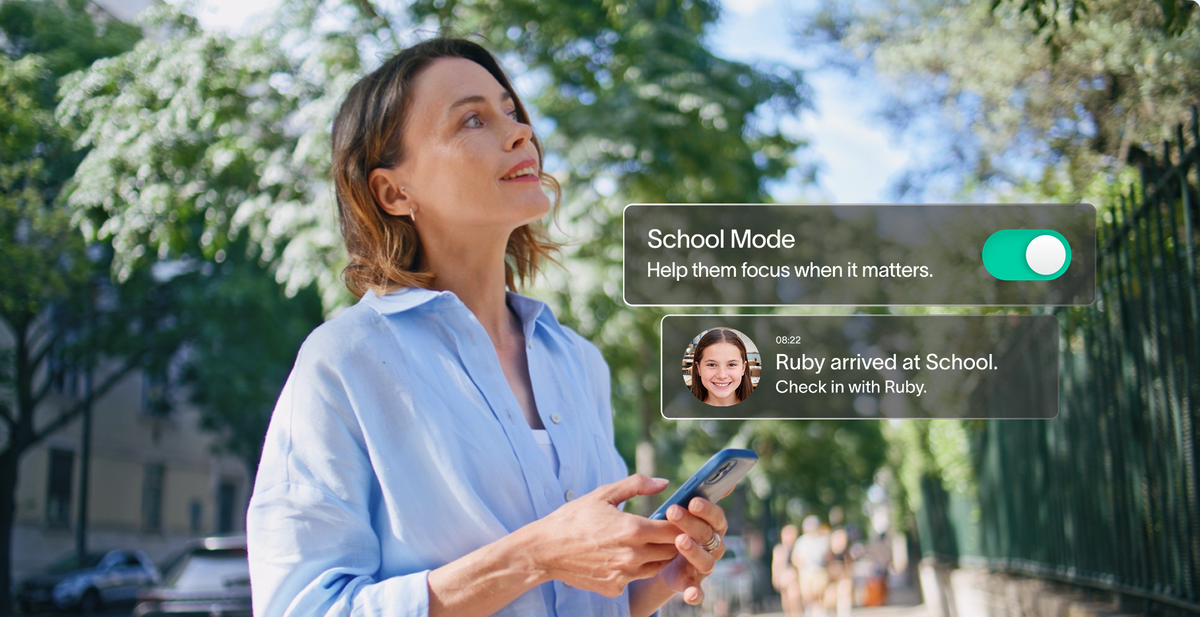
An app to find kids' location should show you exactly where your kid is without needing them to answer a call or check a phone. That's the whole point of the Spacetalk App. The answer should be a tap away, not a waiting game.
Maybe it's an "are you home yet" moment after school. Maybe it's just a habit before you leave the house. Either way, the app answers it fast.
The Spacetalk App shows a live location over the watch's own 4G connection. It also alerts you when your kid reaches a familiar place and lets you watch a regular journey unfold as it happens.
Here's how to use each part properly, so the location you see stays accurate and current.
Open the Spacetalk App and select your kid's profile from your Space. You'll land on the map screen, showing their last known location. From there, you can request a fresh update on the spot.


By default, the kid's smart watch sends a location update every 15 minutes on its own. You can shorten or lengthen that interval in the app. Choose whatever suits how closely you want to follow along.
Kids can also trigger an update themselves. They swipe to the Location feature on the Adventurer 2 or Loop and tap the icon. This sends their position straight to your app, handy for letting you know they've arrived somewhere without a message.
This works both ways. You can check in on your kid, and they can check in with you, without a phone call or a text.
This is what makes Spacetalk a genuinely useful app to find kids' location, not just a one-off locator. The watch carries its own SIM and 4G connection. It keeps reporting continuously wherever there's coverage, rather than depending on a single GPS ping or a paired phone nearby.
It's the difference between a snapshot and something you can actually rely on through a whole school day. Anyone else in the same Space, like a partner or a grandparent, sees that same live location too, so checking in doesn't fall on one person alone.
That matters for busy households. Co-parents, grandparents or carers can all glance at the same map, instead of one person fielding every question.

Places let you mark the spots your kid visits most, like home, school, grandma's house or the sports field. You get a nudge the moment they arrive or leave. No need to open the app and check.
Most families start with three or four Places. Home and school cover the basics, while grandma's house or an after-school activity rounds things out.
Places only work while your kid is sharing location in that Space. If an alert ever goes quiet, check Member Management first.
Once set up, Places run quietly in the background. You'll know your kid got to school without having to ask. That's peace of mind delivered automatically, not something you have to chase down between meetings.
Routes let you watch a regular trip play out in real time, like the walk to school or the drive to sports practice. They'll nudge you if your kid strays off the path you've set.
A Route doesn't need to be complicated. One regular trip is often enough to get real value, and you can always add more later.
Routes suit the trips that happen most, the regular commute rather than a one-off outing. They're worth setting up for school runs, sports practice, a music lesson or a regular trip to a grandparent's house.
Once set, you skip the mental math of "they should be there by now" and just glance at the map instead.

The most accurate readings come from a charged watch with good signal and the right update interval. For anyone sharing location from a phone instead of a watch, the right permissions matter just as much.
None of this needs to be complicated. A few minutes of setup now saves a lot of guessing later, especially on a busy school morning when every minute counts.
Get these right, and you have a proper app to find your kids' location you can actually trust. Not just at the moment you check, but across an entire school day or weekend outing.
The Spacetalk Help Centre has full step-by-step guides for all of this, from checking a live location through to reviewing location history.
If your Space isn't set up yet, the Spacetalk App remains a reliable app to find kids' location once your Adventurer 2 or Loop is paired, free to download and ready in just a few minutes.
Explore Spacetalk
Open the app and select your kid's profile from your Space. The map screen shows their last reported position. Swipe up on the Actions menu and tap Refresh Location for a more current update.
It depends on the update settings for their watch. The default is every 15 minutes, though setting it tighter gives closer visibility at the cost of battery life. Tapping Refresh Location requests an immediate update, usually within a minute or two.
Tap Refresh Location first. If it still looks stale, check that the watch has signal and battery, since a flat battery or a dead zone is the most common cause. Switching on Wi-Fi as a backup also helps when mobile coverage is patchy.
Love keeping up with Spacetalk?
Add us as your preferred source on Google and never miss a new post, product update or parenting tip.
Share:
How the Spacetalk App's Check-Ins Add an Emotional Layer to Parental Monitoring
The Best Spacetalk Watches and Family Tech Gifts This Christmas