How the Spacetalk App Keeps Safety Settings Locked to the Parent Account
Key Takeaways
Every safety setting for your kid's watch lives on your phone, inside your parent account, not on the watch.
Trusted Contacts, SOS contacts, School Mode, Places, Routes and Buddy approvals can only be changed by you.
Your kid controls how the watch feels, like volume and brightness, but can't widen the rules you've set.
A factory reset wipes the watch and still needs re-pairing through your Spacetalk App before it reconnects.
A five-minute review each school term keeps contacts, Places, Routes and School Mode matched to their routine.
Many phone-based controls sit on the same device your kid holds, so a curious tween only needs a free afternoon and a YouTube tutorial to find a workaround.
The Spacetalk App works the other way round. Every safety setting for your kid's Spacetalk Watch lives on your phone, inside your parent account. They wear the watch, and you hold the controls.
Here's exactly what stays with you, what your kid can adjust, and how to check your setup in a few minutes.
What Stays Controlled from the Parent Account
Anything that decides who can reach your kid or when the watch goes quiet stays with the parent account. The watch follows those rules, but it can't rewrite them.
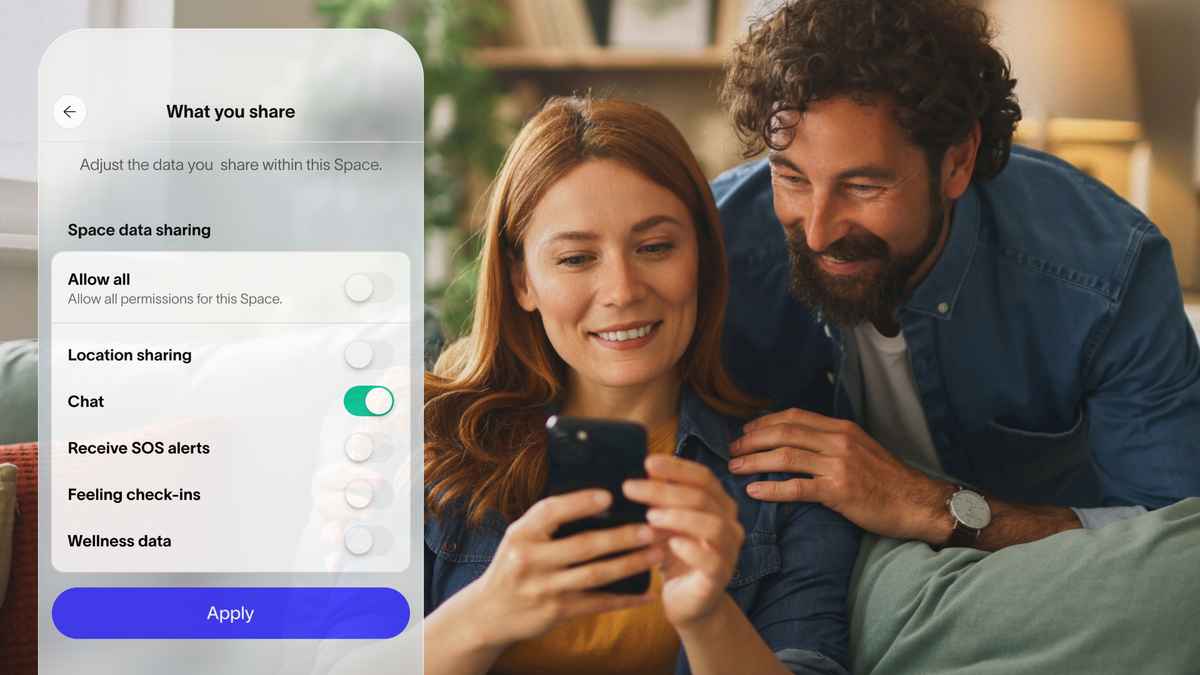
When you add a kid to a Space, you manage what they share on their behalf, and you can change it at any time. As the Space owner, you also hold the admin abilities, including adding or removing Members and creating Places and Routes.
Settings you control only from the Spacetalk App:
Trusted Contacts: You add every person who can call or message the watch, either through a Space or as a watch contact. If a name isn't on the list you've built, your kid can't call them, and they can't reach your kid.
SOS contacts: You nominate up to three emergency contacts. When your kid slides the SOS button, the watch calls and alerts them, and an alarm pops up in your app.
School Mode: You pick the days and hours, then choose which functions switch off. You might keep calls on and turn the calculator off. The watch stays silent in class, while SOS and location stay live.
Places and Routes: Only the Space owner or an admin can create the zones and journeys that send arrival, departure and off-route alerts.
Location update frequency: The watch shares its location every 15 minutes by default. You change that interval in the app, not on the wrist.
Buddies: When your kid requests a Buddy from their Spacetalk Adventurer 2, the request lands in your app. Nothing connects until you approve it.
Alarms and preset messages: You set Parent Alarms and write the quick-reply messages your kid sees. The option for kids to set their own alarms stays off until you switch it on.
Member admins: You decide which other adults, such as a co-parent or carer, can help manage your kid.
Ownership of a Space has its own protection. An owner can hand the Space to another Member, but only through Member Management in Space settings, followed by a confirmation screen that lists exactly which access you'll hand over. Nobody can claim ownership from the watch.
This set-up is why many families treat Spacetalk as a parental control app that cannot be deleted. The rules sit on your phone, well away from curious fingers.
What a Kid Can and Can't Change on Their Own Device
Your kid controls how the Spacetalk Watch feels, not what it's allowed to do. They can tweak comfort settings and use every feature you've enabled, but they can't widen the rules.
What your kid can adjust on the watch:
Volume and screen brightness from the swipe-down menu.
Their ringtone and notification tone.
WiFi networks and Bluetooth headphones.
Flight mode, which pauses calls and location updates
What your kid can use, within your limits:
Calls and messages to anyone on their Trusted Contacts list
Kid-to-Parent chat, which sends from the watch straight into your Spacetalk App
Watch-to-watch chat with Buddies you've approved
Video calls with Members of the same Space on the Adventurer 2, with each call ending automatically at two minutes
The SOS button, plus a one-tap location update they can send you any time
What your kid can't do on the watch:
Add a new number to Trusted Contacts or remove one of yours
Change School Mode hours or bring back a function you've switched off
Create a Place or Route, or move the ones you've set
Join a new Space without your approval
Change how often the watch shares its location
Download apps or browse the internet, because the Spacetalk Watch has no app store and no open web access
Even a factory reset doesn't hand control to your kid. A reset wipes the watch, and it then needs pairing again through your Spacetalk App before it reconnects to your family.
One distinction matters here. These locks belong to the Spacetalk Watch. The Spacetalk App on its own doesn't block social media or the open internet on a phone.
If your teen moves to a phone on a Spacetalk Mobile Plan, pair the app with your phone's built-in controls for app and browser limits.
Why Ongoing Conversation Still Matters Alongside This
Locked settings stop workarounds, but they don't explain the reasons behind the rules. A quick, regular chat helps your kid understand the boundaries and see them as support rather than suspicion.
Kids who know why a rule exists tend to push against it less. They're also more likely to tell you when something feels off, whether that's a Buddy message that upset them or a Route that no longer matches their walk home.
Conversations worth having early:
Build the Trusted Contacts list together. Let your kid suggest names, then explain which ones you'll add and why.
Agree on what SOS is for. Talk through real examples, like a missed bus or a cancelled pickup, so they slide the button without hesitating.
Agree on when flight mode is okay. Planes, yes. The walk home from school, no. A clear rule now saves a worried phone call later.
Show them the Places you've set. Kids feel respected when they know where alerts trigger, and it avoids the awkward "how did you know?" moment.
Use Feelings and Awards as openers. The emoji check-ins your kid sends appear in your app, and a star request makes an easy excuse to chat about their day.
Set a review date. Loosen one rule at a time as trust grows, such as approving a new Buddy or extending a Route to the local park.
Reviewing What's Locked on Your Account
A five-minute check each school term keeps your setup matched to your kid's current routine. Everything you need sits in two spots in the Spacetalk App: your Profile and each Space's settings.
Open Profile and tap your kid's watch: Check which Spaces they belong to and what they share in each one.
Check Member admins: Make sure every adult listed still needs access, and add a co-parent or carer if you share pick-ups.
Review Trusted Contacts and SOS contacts: Remove old numbers, like last season's footy coach, and confirm your three emergency contacts still answer their phones.
Update Places and Routes: Match them to this term's school run and weekend sport.
Confirm School Mode: Adjust the hours whenever the timetable changes, and check which functions you've switched off.
Secure your own login: Turn on alternate security authentication in your Profile to add another layer of protection to your parent account.
Plan any handover: If you intend to leave a Space, transfer ownership to another adult first through Member Management so the admin controls stay with a parent.
If you've been searching for a parental control app, the Spacetalk App offers controls that never leave your phone in the first place. The Spacetalk Adventurer 2 bundles are currently on sale, so it's a good time to set up your family's first Space.
Explore Spacetalk
Built for exactly this
App · Family
Spacetalk App
Every safety setting for your kid's Spacetalk Watch lives on your phone, inside your parent account.
No. Your kid can change comfort settings like volume and brightness, but Trusted Contacts, School Mode, Places and Routes all live in the Spacetalk App on your phone. The watch simply has no way to reach them.
What settings are locked to the parent account only?
Trusted Contacts, SOS contacts, School Mode, Places, Routes, Buddy approvals and location update frequency all sit with the parent account. Only the Space owner or an admin can add or remove Members, and ownership only changes through a confirmed transfer in the app.
Is the app harder to disable than a typical phone app?
Yes, because there's nothing on your kid's device to uninstall. Many parental controls run on the same phone your kid uses, while Spacetalk keeps every rule on your side. For the kid wearing the watch, it works as a parental control app that cannot be deleted, and a factory reset only means re-pairing through your app.
Love keeping up with Spacetalk?
Add us as your preferred source on Google and never miss a new post, product update or parenting tip.




Love keeping up with Spacetalk?
Add us as your preferred source on Google and never miss a new post, product update or parenting tip.
Share:
How the Spacetalk App Gives Parents an At-a-Glance View of Their Family
Setting Up the Spacetalk App as a Family Safety App on Android