

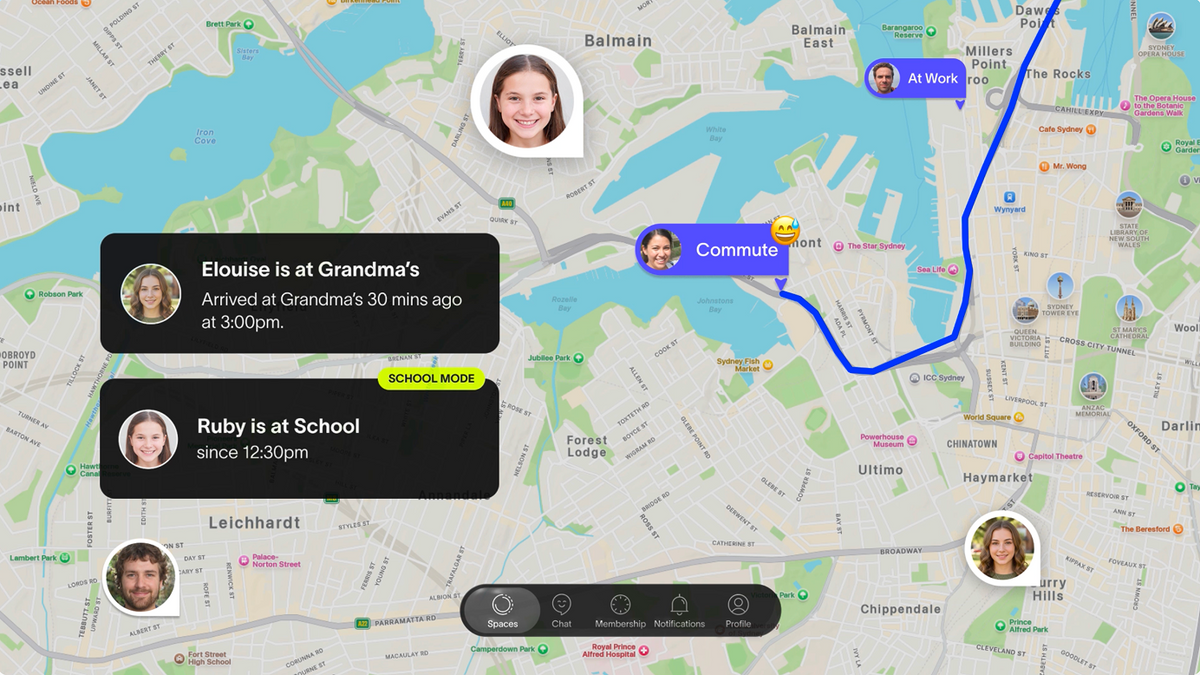
Spacetalk wurde als Plattform für die Sicherheit der Familie entwickelt, nicht nur als Uhr. Die Spacetalk-App ist die zentrale Schnittstelle, die die Spacetalk-Uhr Ihres Kindes mit Ihrem Smartphone verbindet.
Bei Android gibt es eine Handvoll Einstellungen, die tief im Betriebssystem selbst verborgen sind und die Leistung des Systems beeinflussen.
Wenn Sie diese richtig einstellen, haben Sie das, was viele Familien als die beste Kindersicherungs-App für Android betrachten, ohne dass Sie etwas zusätzlich installieren müssen.
Heute führen wir Sie durch die Funktionen „Orte“, „Routen“, „Schulmodus“ sowie die Android-Benachrichtigungseinstellungen, die die meisten Eltern bei der Ersteinrichtung übersehen, damit die App vom ersten Tag an einwandfrei funktioniert.
Orte sind die Orte, an denen sich Ihr Kind regelmäßig aufhält. Sie richten diese einmalig in der App ein und erhalten eine Benachrichtigung, sobald Ihr Kind dort ankommt oder den Ort verlässt.
Um einen Ort unter Android hinzuzufügen, öffne die Spacetalk-App, tippe auf deinen „Space“, wähle die Smartwatch deines Kindes aus und gehe zu „Orte“. Tippe auf das Plus-Symbol und setze einen Marker auf der Karte oder suche direkt nach der Adresse. Folgende Orte lohnen sich als „Orte“:
Eine Route ist der Weg zwischen zwei Orten, wie zum Beispiel der Weg von der Schule zur Bushaltestelle oder die Fahrt von zu Hause zum Fußballtraining. Wenn du eine Route festlegst, erhältst du eine Benachrichtigung, sobald dein Kind davon abweicht – das ist besonders in den ersten paar Malen, wenn es alleine irgendwohin geht, wirklich hilfreich.

Unter Android setzen beide Funktionen voraus, dass die Ortungsdienste des Smartphones im Hintergrund aktiv bleiben.
Wenn Ihr Smartphone so eingestellt ist, dass Hintergrund-Apps stark eingeschränkt werden (was bei den benutzerdefinierten Energiesparmodi einiger Android-Hersteller häufiger vorkommt), kann es zu Verzögerungen bei den Benachrichtigungen von „Orte“ und „Routen“ kommen. Die Lösung für dieses Problem behandeln wir im Abschnitt „Benachrichtigungen“ weiter unten.
Im Schulmodus legen Sie die Tage und Uhrzeiten fest. Während dieses Zeitraums schaltet sich die Uhr stumm und bestimmte Funktionen werden deaktiviert, während die SOS-Funktion und die Standortbestimmung im Hintergrund weiterhin voll funktionsfähig bleiben. So vibriert die Uhr Ihres Kindes nicht während des Mathematikunterrichts, aber Sie würden dennoch sofort erfahren, wenn es den SOS-Knopf drückt oder Sie braucht.
Um die Funktion auf Android einzurichten, rufst du in der Spacetalk-App die Einstellungen der Uhr deines Kindes auf, suchst den „Schulmodus“ und wählst Folgendes aus:
Sobald der Schulmodus aktiviert ist, kann Ihr Kind ihn nicht mehr über die Uhr deaktivieren. Nur Sie können die Einstellung über die App ändern.

Für Familien mit älteren Kindern, die im Rahmen des Spacetalk Mobile-Tarifs von einer Smartwatch auf ein Android-Smartphone umsteigen, lohnt es sich, die Spacetalk-App mit den in Android integrierten „Digital Wellbeing“-Tools oder „Family Link“ zu kombinieren.
Spacetalk kümmert sich um die Liste der geschlossenen Kontakte, die Standortbestimmung und die SOS-Funktion, während die nativen Bildschirmzeit-Einstellungen von Android die Begrenzung der App-Nutzung und die Auszeit auf dem Smartphone selbst verwalten können.
In Kombination erweist sich diese Lösung tatsächlich als die beste Kindersicherungs-App für Android, da sie sowohl die Sicherheitsaspekte als auch die allgemeinen Nutzungsgewohnheiten des Smartphones abdeckt.
Hier liegen die meisten Probleme bei der Einrichtung tatsächlich begründet, und selten liegt es an der App selbst. Android-Smartphones gehen bei der Verwaltung der Akkulaufzeit sehr rigoros vor, und diese Verwaltung kann unbemerkt dazu führen, dass Standortdaten und SOS-Alarme nicht in Echtzeit übertragen werden.
Wenn Sie diese Android-Einstellungen richtig vornehmen, läuft das gesamte System so, wie es soll:
So können Sie schnell überprüfen, ob alles funktioniert: Bitten Sie Ihr Kind, über die Uhr eine Standortaktualisierung oder eine „Places“-Ankunft zu senden, und schauen Sie, wie lange es dauert, bis die Information auf Ihrem Smartphone eintrifft.
Wenn es fast sofort funktioniert, ist alles in Ordnung. Wenn es zu einer Verzögerung von mehreren Minuten kommt, liegt das fast immer an einer der oben genannten Einstellungen für den Akku oder die Berechtigungen.
Sobald die Grundlagen stehen, runden ein paar kleinere Anpassungen die Einrichtung ab:
Das alles dauert nicht lange, sobald man es das erste Mal richtig gemacht hat. Die Einrichtung dieser Einstellungen dauert etwa zehn Minuten, und man bleibt dadurch im „ loop “, ohne darüber nachdenken zu müssen.
Falls Sie die Uhr Ihres Kindes noch nicht über die App eingerichtet haben, finden Sie auf der Spacetalk-App-Seite alles, was Sie für den Einstieg benötigen.
Entdecken Sie Spacetalk
App · Familie
Spacetalk App
Orte, Routen, Schulmodus, SOS und Vertraute Kontakte – kostenlos bei Google Play.
Mehr erfahrenSmartwatch · Kinder
Spacetalk Adventurer 2
4G-Videoanrufe, GPS, SOS und Chat – von den Eltern über die App verwaltet.
Jetzt einkaufenPläne · Familie
Spacetalk Handy-Pläne
Sichern Sie auch das erste Android-Handy Ihres Kindes mit denselben Sicherheitsfunktionen ab.
Jetzt einkaufenAuf Android stehen Ihnen alle Funktionen der Spacetalk-App zur Verfügung, darunter „Orte“, „Routen“, „Schulmodus“, „Vertrauenswürdige Kontakte“ und „SOS-Benachrichtigungen“ – alles über dieselbe App, die auch unter iOS verwendet wird. Der wichtigste Punkt, den Sie bei Android beachten sollten, ist, dass die Hintergrundberechtigungen und Akku-Einstellungen so konfiguriert sind, dass Benachrichtigungen ohne Verzögerung ankommen.
Ja. Stellen Sie den Akkuverbrauch der Spacetalk-App auf „Uneingeschränkt“ ein, erteilen Sie die Standortberechtigung dauerhaft statt nur während der Nutzung und fügen Sie die App einer herstellerspezifischen Liste für automatisch startende oder geschützte Apps hinzu. Diese drei Einstellungen sind in der Regel der Grund dafür, dass sich Benachrichtigungen unter Android verzögert anzeigen.
Richten Sie zunächst „Orte“ und „Routen“ ordnungsgemäß ein, da Sie diese Funktionen täglich nutzen werden, und aktivieren Sie dann den „Schulmodus“ während der Schulzeiten. Wenn Ihr Kind auf ein Smartphone umsteigt, runden Sie die Einrichtung ab, indem Sie die Spacetalk-App mit den nativen Android-Tools „Digitales Wohlbefinden“ oder „Family Link“ verknüpfen – so werden sowohl die Sicherheit als auch die Bildschirmzeit abgedeckt.
Liest du gerne die neuesten Beiträge von Spacetalk?
Fügen Sie uns bei Google als bevorzugte Quelle hinzu, damit Sie keinen neuen Beitrag, keine Produktneuheit und keinen Erziehungstipp verpassen.
Teilen:
Spacetalk-Uhren für Jungen: Wie geschaffen für aktive Tage
Was Ihr Kind tatsächlich von der Aktivitätsaufzeichnung einer Smartwatch braucht