

Christmas Morning, Ready to Go: Setting Up a Gifted Watch the Night Before
- by Craig Boshier
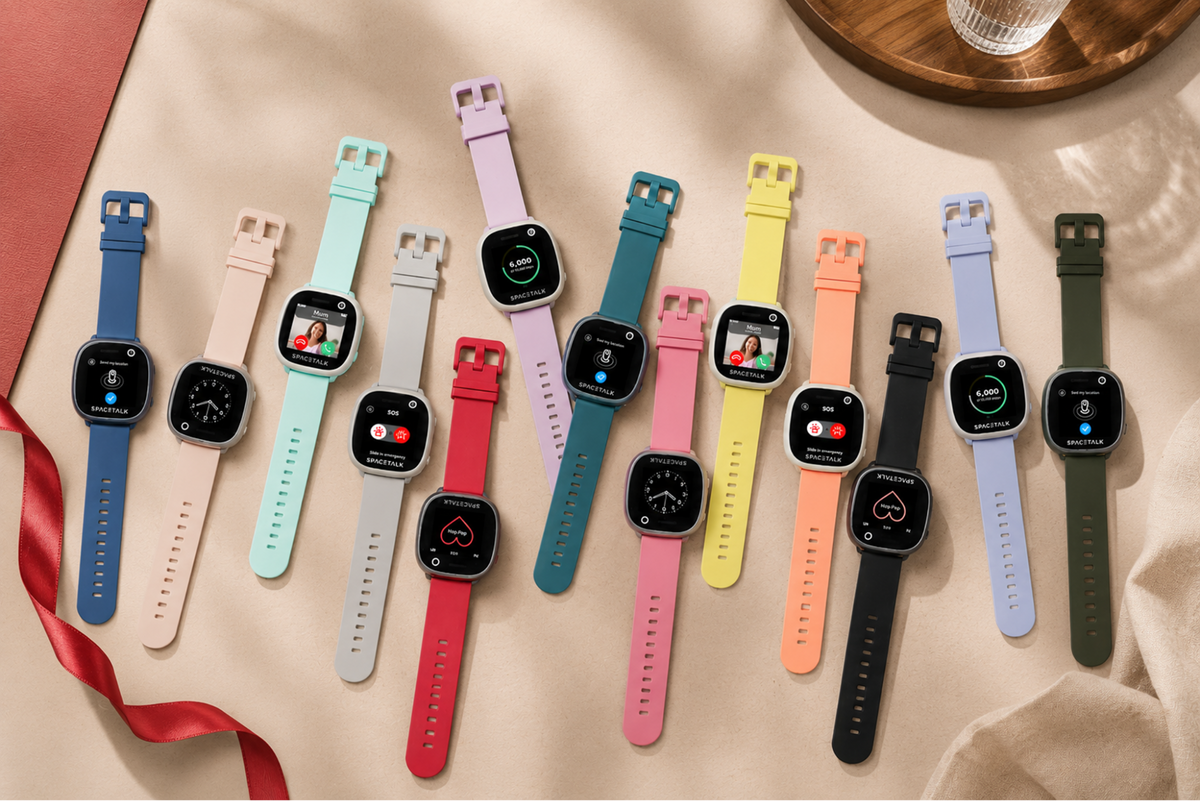
Key Takeaways
- Kids smartwatch Christmas setup doesn't need to eat into Christmas morning if most of the groundwork happens the night before.
- Put the watch on its charging cradle or cable overnight so it's at full battery and ready to pair the moment it's unwrapped.
- Download the Spacetalk App and get your account set up now, so you're not doing it for the first time with an excited kid standing over your shoulder.
- Save the fun, personal bits, picking a watch face background, for the morning itself, so there's still something to discover once the technical setup is done.
- Add grandparents and any other regular carers as Trusted Contacts before the extended family arrives for lunch, so your kid can show off the watch by actually calling them.
Kids smartwatch Christmas setup doesn't need to eat into Christmas morning if most of the groundwork happens the night before.
A bit of prep on Christmas Eve, after the kids are in bed and the presents are wrapped, is the difference between "here, let's just charge it for a bit first" and handing it over ready to go the second it's unwrapped.
It's one of those jobs that takes longer to think about than to actually do. Twenty minutes on Christmas Eve, after the last of the wrapping paper's been taped down, covers most of what stands between a boxed watch and a working one. Grab a cuppa once the kids are finally asleep and work through it in one sitting, rather than half-doing it between wrapping presents and stacking stockings.
Nobody Wants to Spend Christmas Morning on a Setup Screen
The whole point of Christmas morning is the moment itself, not ten minutes of app permissions and account creation while everyone waits.
Ten minutes might not sound like much, but on Christmas morning, with everyone standing around in pyjamas and wrapping paper still flying, it's ten minutes that drags. The short version: front-load the boring bits the night before, so the morning itself is just the good part.
A kid staring at an unpaired watch while an adult scrolls through app permissions is a pretty deflating way to start Christmas Day. It's not that the setup is hard, it's that it competes with the exact moment everyone's actually there for. By the time the box is open, the excitement's already running hot, and that's not really the moment to be asking anyone to wait while a screen loads.
What to Do the Night Before
Charging It Fully
Put the watch on its charging cradle or cable overnight so it's at full battery and ready to pair the moment it's unwrapped.
It doesn't need long to charge, but there's no point leaving it as the very last job on the list. A flat battery at 6am, with an excited kid already asking to put it on, is the exact scenario this ten-minute job avoids. It's worth tracking down the charger before the wrapping starts, too, since a charging cable that's gone missing at 11pm on Christmas Eve is its own special kind of panic.

Downloading the Spacetalk App on Your Phone
Download the Spacetalk App and get your account set up now, so you're not doing it for the first time with an excited kid standing over your shoulder.
Setting up your account, entering your details and getting a feel for where everything lives in the app means you're not squinting at menus for the first time on the day itself, while someone's asking when they can finally put it on. Have a look at where Places, Trusted Contacts and School Mode sit in the menus while you're there, so none of it is unfamiliar territory when you're setting things up properly the next morning.
Having Your Details Ready
Have the SIM number, your identification for the Watch Plan activation, and your Wi-Fi details on hand, so nothing sends you hunting through drawers on the day.
It's a short list, but it's exactly the kind of short list that turns into a scavenger hunt through drawers if you leave it until the morning itself, with everyone standing around waiting on you.
Jot it down somewhere you'll actually find again, a note in your phone, a sticky note on the fridge, rather than trusting yourself to remember it after a long Christmas Eve. Future you, half-asleep and holding a coffee, will be glad of it.
What to Leave for the Morning
Letting Your Kid Choose the Watch Face
Save the fun, personal bits, picking a watch face background, for the morning itself, so there's still something to discover once the technical setup is done.
It doesn't take long, but it's their bit, the moment the watch stops being "the thing mum and dad set up" and starts being properly theirs. Some kids will spend longer picking a background than they spent picking the watch itself, and that's honestly kind of the point.
Making the First Call Together
The first call or video call on the watch, maybe to a grandparent already added as a Trusted Contact, is a nice moment to save for Christmas morning rather than testing it the night before.
There's something nice about that first call happening on the day itself, with everyone still in pyjamas in the loungeroom, rather than as a test run the night before while you're tired and still wrapping the last few presents. It doesn't need to be more than a quick hello and a wave at the camera, but it's often the bit that gets talked about over lunch.

Adding the People Who Matter Before Lunch
Grandparents and Carers as Trusted Contacts
Add grandparents and any other regular carers as Trusted Contacts before the extended family arrives for lunch, so your kid can show off the watch by actually calling them.
It also means when the extended family does arrive, your kid's got someone new to actually call, which tends to be a bigger hit than another round of "look what I got." If grandparents are interstate or overseas and can't be there in person, that first call over breakfast can end up being the highlight of their morning too, not just your kid's.
Setting Home as a Place
Setting home as a Place straight away means you'll start seeing arrival and departure alerts from day one, not just once you remember to set it up weeks later.
It's a quick job that pays off for months afterward, so it's worth doing while you're already in the app sorting everything else out, rather than coming back to it later once the novelty's worn off. It also saves you digging back through the app trying to remember how it works weeks later, once the school run's back on and it actually matters.

Get Started With Your Spacetalk Watch
A bit of prep the night before means Christmas morning is about the moment, not the setup. Get started with Spacetalk ahead of the day.
Explore Spacetalk
Built for exactly this
Frequently Asked Questions
How long does it take to set up a Spacetalk Watch?
With the app already downloaded and details ready, pairing the watch itself typically takes a few minutes, scanning a QR code on the watch screen from within the app.
Can I set it up before my kid opens it?
You can prepare the app, your Space and Trusted Contacts in advance, but pairing the specific watch happens once it's switched on, which usually means doing that step on the day.
Does the watch need to be activated before Christmas Day?
No. The Watch Plan can be activated on Christmas morning itself, so there's no need to switch it on any earlier than the day you're handing it over.
Love keeping up with Spacetalk?
Add us as your preferred source on Google and never miss a new post, product update or parenting tip.
Share:
How Spacetalk Keeps Your Watch Connected When It Matters